
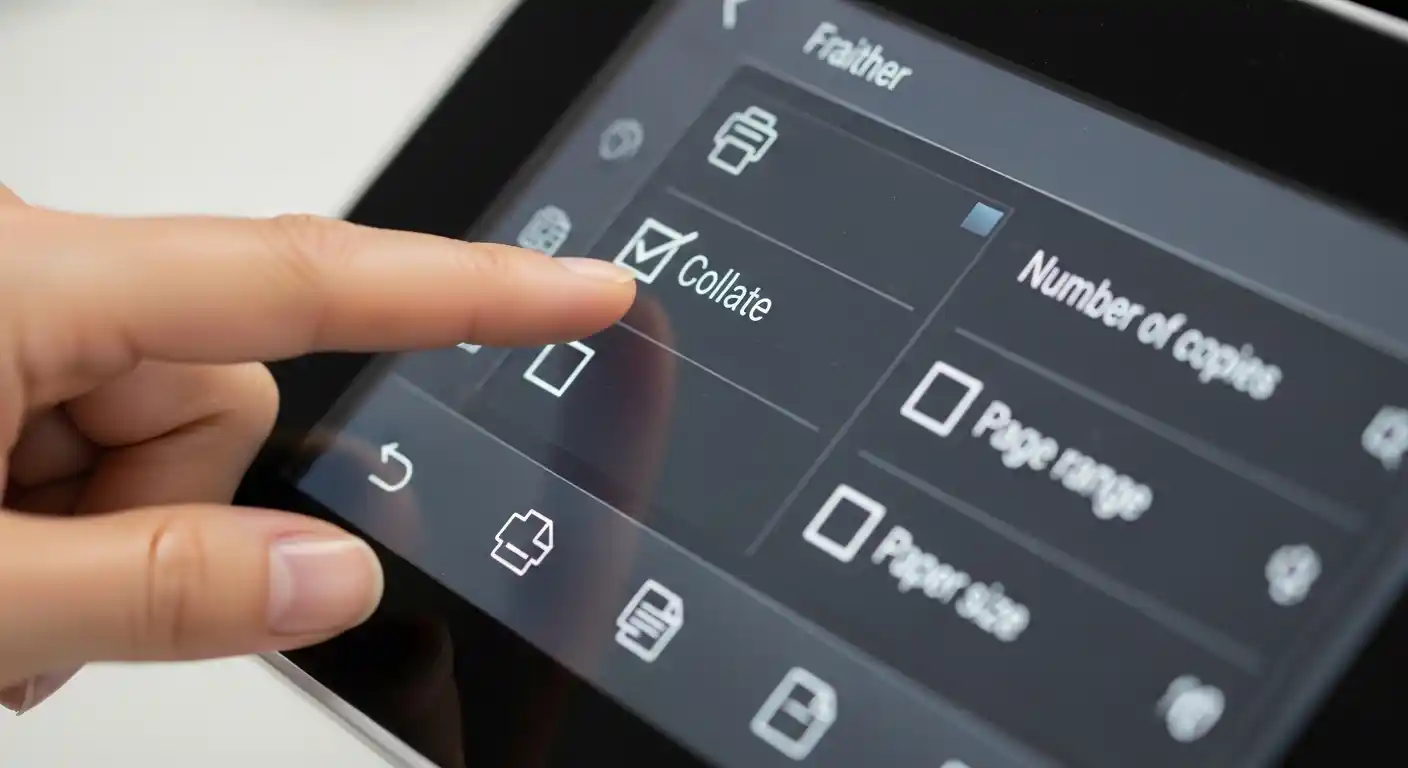

If you’ve ever clicked “Print” and suddenly noticed a checkbox asking whether you want to collate your document, you’re not alone. Most people either ignore it or guess randomly. But understanding the collate meaning on a printer can genuinely save you time — especially when printing multi-page documents in bulk.
Let’s break it all down in plain English.
What Does Collate Mean on a Printer?
In simple terms, collating means printing your pages in the correct sequential order for each copy. So if you’re printing five copies of a 10-page document, a collated print job gives you five complete sets — pages 1 through 10 — one after another.
Without collating, your printer spits out all five copies of page 1 first, then all five copies of page 2, and so on. That leaves you manually sorting through 50 loose pages to build your five sets. Not fun.
Think of collating like a teacher preparing test packets for a class. Instead of printing 30 copies of page one and stacking them separately, collating means each student gets their own complete, ordered packet straight from the printer.
Collated vs. Uncollated Printing
Understanding the difference between these two modes helps you choose the right one for every print job.
Collated printing:
- Pages print in order: 1, 2, 3 → 1, 2, 3 → 1, 2, 3
- Each set comes out complete and ready to use
- Ideal for reports, booklets, presentations, and handouts
Uncollated printing:
- Pages print in groups: 1, 1, 1 → 2, 2, 2 → 3, 3, 3
- You receive stacks of the same page together
- Best when you need multiple copies of a single page (like a flyer)
The right choice depends entirely on your goal. Most office print jobs benefit from collating, but if you’re printing a one-page flyer 100 times, uncollated is the obvious pick.
Traceloans: What They Are and How They Work
How to Use the Collate Setting
Finding the collate option is straightforward on most devices. Here’s how it typically works:
On Windows
- Press Ctrl + P to open the print dialog
- Look for the Copies section
- Check or uncheck the Collate checkbox
- Confirm your settings and hit Print
On Mac
- Go to File > Print
- Expand the print options if needed
- Find the Copies field — the collate checkbox is usually right beside it
- Select your preference and print
From Word or Google Docs
Both applications show the collate option inside their print preview. Microsoft Word displays it clearly under the Copies setting, while Google Docs includes it in the “More settings” panel.
Most modern printers have collate enabled by default, which is helpful since that’s what the majority of print jobs require.
When Should You Use Collate?
Here’s a practical look at the situations where collating makes your life easier:
- Business reports — When distributing a 15-page quarterly report to eight board members, collating means each person gets a complete, ordered copy without any manual sorting.
- School handouts — Teachers printing multi-page worksheets for an entire class benefit hugely from collated output.
- Instruction manuals — Step-by-step guides need to be in order. Collating ensures no one accidentally gets page 7 before page 3.
- Booklets and brochures — When folding pages into a booklet format, order matters completely.
On the other hand, skip collating when printing single-page documents, simple forms, or anything where page order is irrelevant.
Pros and Cons of Collated Printing
Pros
- Saves time — No manual sorting after printing
- Reduces errors — Pages come out in the right order automatically
- More professional — Documents look polished and ready to distribute
- Convenient for large batches — The more copies you need, the more time collating saves
Cons
- Slightly slower — The printer processes each full set before starting the next, which can take longer for large jobs
- Higher memory usage — Your printer needs to store the full document in memory to collate properly
- Not ideal for single-page jobs — Adds unnecessary processing for simple print tasks
- Older printers may struggle — Some budget or older models handle collating less efficiently
Overall, the pros far outweigh the cons for most everyday print jobs.
Common Mistakes People Make with Collate
Even a simple setting like this trips people up. Here are the most frequent errors:
1. Leaving it unchecked by default Some older print drivers default to uncollated. Always double-check before printing a large batch — finding 200 unsorted pages in your tray is a painful lesson.
2. Using collate for single-page documents There’s no point collating a one-page file. It adds processing time without any benefit.
3. Confusing collate with duplex printing Duplex printing means printing on both sides of the paper. Collating controls page order. They’re completely different settings — and you can use both together.
4. Ignoring it during large jobs The bigger the job, the more collating matters. People often realize they needed it only after spending 20 minutes sorting pages by hand.
5. Not previewing the document first Always use print preview before committing to a large print run. A misplaced page in your document will still come out misplaced — collated or not.
Best Practices for Collated Printing
Follow these tips to get the most out of your printer’s collate feature:
- Always preview before printing — Check page count and order in the print preview window
- Enable collate by default in your printer settings if you regularly print multi-page documents
- Test with a small batch first — Print two collated copies before running 50 to catch any issues early
- Keep your printer drivers updated — Newer drivers handle collating more efficiently and with fewer errors
- Use high-quality paper for formal documents — Collating is only half the equation; paper quality matters too
- Label your sets if printing many copies — Even with collating, numbering document sets helps during distribution
Conclusion
The collate setting on your printer is one of those small features that makes a big difference once you understand it. At its core, collating simply keeps your printed pages in the right order for each copy — saving you from the tedious task of sorting stacks of paper by hand.
For anyone regularly printing reports, handouts, manuals, or presentations, collating is practically essential. It’s fast, it’s automatic, and it keeps your documents looking sharp and professional.
Next time you open that print dialog, take a second to check whether collate is on or off. A small click now can save you a lot of sorting later.
Frequently Asked Questions
1. What does collate mean on a printer?
Collating means printing multiple copies of a document in sequential page order. Each complete set prints one after another rather than all copies of one page printing together.
2. Should collate be on or off?
Turn collate on when printing multi-page documents with multiple copies. Turn it off when printing single-page documents or when you need stacks of the same page.
3. Does collating slow down printing?
It can slightly slow the process because the printer completes each full set before starting the next. However, the time saved on manual sorting usually more than makes up for it.
4. Is collate the same as duplex printing?
No. Duplex printing refers to printing on both sides of a page. Collating refers to the order in which multiple copies of a document are printed.
5. Why is my printer not collating correctly?
This is usually caused by outdated printer drivers, low printer memory, or a corrupted print file. Try updating your drivers, restarting the printer, and re-sending the print job.
