
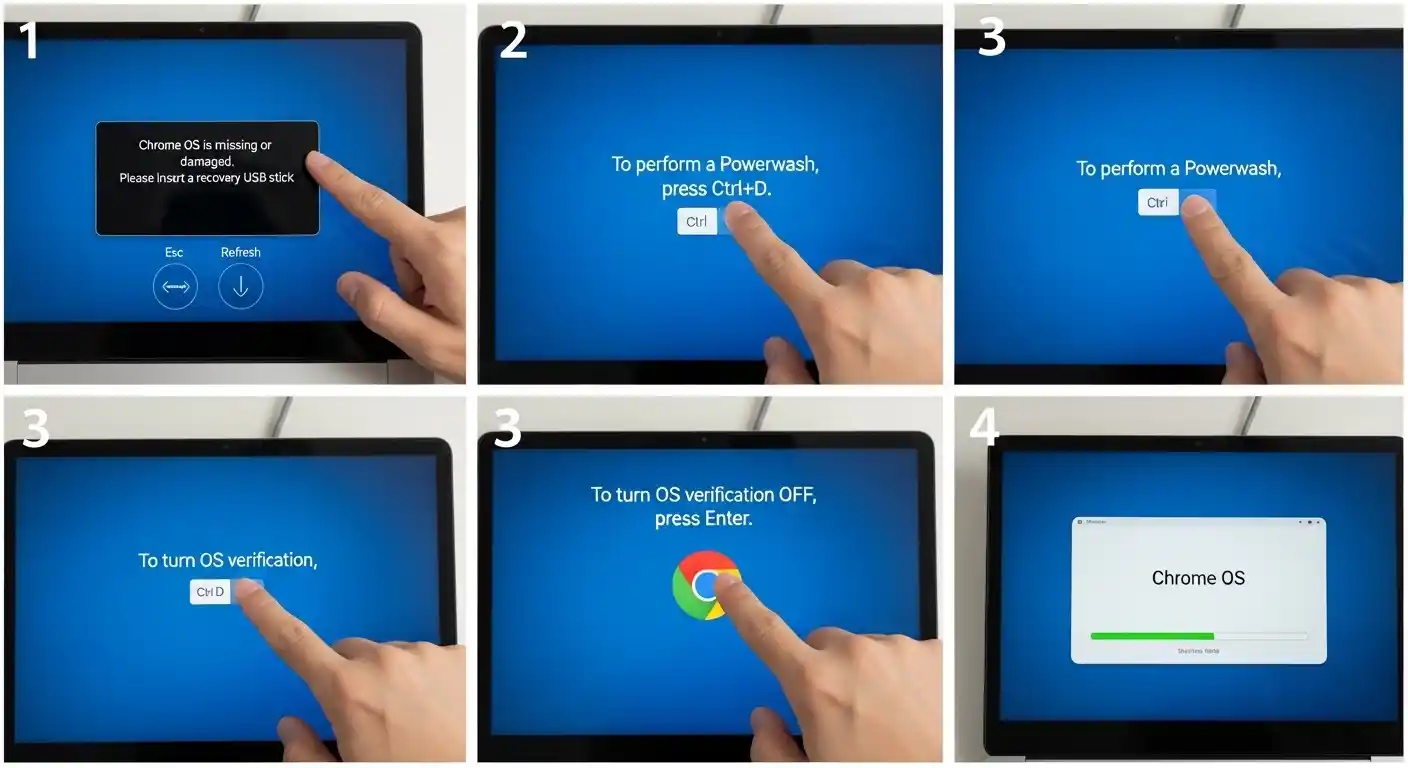

If your Chromebook has been acting sluggish, freezing up, or just behaving strangely, knowing how to powerwash a Chromebook can save you a lot of frustration. A Powerwash is essentially a factory reset — it wipes everything and gives your device a clean slate. It sounds scary, but it’s actually one of the simplest fixes you can do.
Let’s walk through exactly how it works, when to use it, and what to watch out for.
What Does Powerwash Actually Do?
Before you hit that reset button, it helps to understand what’s happening under the hood.
A Powerwash removes all local data from your Chromebook. That means your downloaded files, locally stored apps, saved settings, and any accounts you’ve added will be completely erased. Think of it like returning the device to the state it was in when it first came out of the box.
Here’s what gets deleted:
- Local files and downloads
- All added user accounts
- Installed Android apps
- Browser settings and extensions
- Wi-Fi passwords saved on the device
However, anything stored in your Google account — like Google Drive files, Chrome bookmarks synced to your account, or Gmail — stays completely safe. The cloud doesn’t get wiped. Only what’s on the physical device disappears.
When Should You Powerwash Your Chromebook?
Not every problem needs a full reset. But there are some situations where a Powerwash is genuinely the best solution.
You should consider Powerwashing if:
- The device is running unusually slow even after a restart
- You’re selling or giving away your Chromebook
- A student or family member is done using it and you want a fresh start
- An extension or app is causing persistent crashes
- You’re troubleshooting a problem that other fixes haven’t solved
- You’re receiving a Chromebook from someone else and want to start fresh
On the other hand, if your Chromebook just needs a simple restart or an update, start there first. A Powerwash is thorough — sometimes more than you actually need.
What Does Collate Mean on a Printer? Simple Guide
How to Powerwash a Chromebook: Step-by-Step
This process takes only a few minutes. Just make sure you’ve backed up anything important before you begin.
Step 1: Back Up Your Files
Anything saved locally — meaning files in your Downloads folder that haven’t been moved to Google Drive — will be permanently deleted. Open the Files app, check your Downloads folder, and move anything valuable to Google Drive.
Also double-check:
- Photos you’ve taken using the Chromebook camera
- Documents you’ve been working on offline
- Any files transferred from USB drives
Step 2: Sign Out of Your Account
You don’t technically have to sign out first, but it’s a good habit. Click on your profile picture in the bottom-right corner and select “Sign out.”
Step 3: Open Settings
Click the clock area in the bottom-right corner to open the system tray, then click the gear icon to open Settings.
Step 4: Navigate to the Powerwash Option
In Settings, click on Advanced in the left-hand menu. Scroll down until you see the Reset settings section. You’ll find Powerwash listed there with a button that says “Reset.”
Step 5: Confirm the Reset
Click “Reset” and your Chromebook will ask you to restart. After the restart, it will begin the Powerwash process. The whole thing usually takes under five minutes.
Step 6: Set Up Your Chromebook Again
Once the Powerwash is complete, your Chromebook will boot up as if it’s brand new. Sign back into your Google account, reconnect to Wi-Fi, and let Chrome OS restore your synced settings.
Alternative Method: Powerwash from the Login Screen
If your Chromebook won’t let you log in or you can’t access Settings, you can still trigger a Powerwash from the login screen.
Here’s how:
- On the login screen, press Ctrl + Shift + Alt + R
- A dialog box will appear asking if you want to restart and Powerwash
- Click Restart
- After the restart, click Powerwash and then Continue
This method is especially useful when the device is completely locked up or you’ve forgotten the password.
Pros and Cons of Powerwashing Your Chromebook
Like any major action, there are both upsides and downsides worth considering.
Pros:
- Fixes a wide range of software problems quickly
- Completely removes any corrupted files or problematic apps
- Improves performance on older or sluggish devices
- Essential step before selling or transferring your device
- Simple and fast — usually done in under 10 minutes
Cons:
- All local data is permanently deleted
- You’ll need to reinstall Android apps and extensions
- Wi-Fi networks and preferences need to be set up again
- Won’t fix hardware problems like a broken display or damaged keyboard
- If you haven’t backed up files, they’re gone for good
Common Mistakes People Make When Powerwashing
Even though the process is simple, a few common errors can cause unnecessary headaches.
1. Not backing up local files first This is the big one. People assume everything is in Google Drive, then realize after the reset that their downloaded photos or documents are gone. Always check the Downloads folder before you start.
2. Confusing a restart with a Powerwash A regular restart clears temporary memory and can fix minor glitches. A Powerwash is far more drastic. Don’t reach for the nuclear option when a simple reboot might do the trick.
3. Powerwashing a managed device If your Chromebook is managed by a school or employer, a Powerwash might trigger re-enrollment requirements. Always check with your IT department before resetting a managed device.
4. Not knowing their Google account password After the reset, you’ll need to sign back in. If you’ve forgotten your Google password, sort that out before you start the Powerwash.
5. Expecting it to fix hardware issues A Powerwash only addresses software problems. If your trackpad is broken or your screen has dead pixels, resetting won’t help.
Best Practices for a Smooth Powerwash Experience
Follow these tips to make the process as painless as possible.
- Sync everything to Google Drive before you begin, not just the stuff you think you’ll need
- Write down your Wi-Fi passwords — your Chromebook won’t remember them after the reset
- Make a list of Chrome extensions you use regularly so you can reinstall them quickly
- Charge your device to at least 50% before starting to avoid any interruptions mid-reset
- Note any Android apps you’ve installed from the Play Store so you can re-download them afterward
- Sign out of all accounts before resetting if you’re passing the device on to someone else
Conclusion
A Powerwash is one of the most useful tools in a Chromebook owner’s toolkit. Whether you’re troubleshooting a stubborn software issue, prepping the device for a new user, or just starting fresh, the process is quick and reliable. The key is making sure you’ve backed everything up beforehand so you don’t lose anything important.
Once you’ve done it once, you’ll realize it’s far less intimidating than it sounds. And most of the time, your Chromebook will come back feeling noticeably faster and more responsive — almost like getting a new device without spending a dime.
Frequently Asked Questions
1. Will a Powerwash delete my Google Drive files?
No. Google Drive files are stored in the cloud and are not affected by a Powerwash. Only files saved locally on the device will be deleted.
2. How long does a Chromebook Powerwash take?
The process typically takes between three and ten minutes, depending on the device. Setup afterward may take a few additional minutes.
3. Can I Powerwash a school-issued Chromebook?
School-managed Chromebooks often have restrictions. Powerwashing one may require re-enrollment through your school’s admin. Check with your IT department first.
4. Does Powerwashing fix a slow Chromebook?
In many cases, yes. If the slowness is caused by software issues, corrupt files, or too many problematic extensions, a Powerwash often resolves it. Hardware limitations won’t be fixed by a reset, though.
5. Can I undo a Powerwash after it’s done?
No. Once the reset is complete, the deleted local data cannot be recovered. This is why backing up your files beforehand is so important.
