
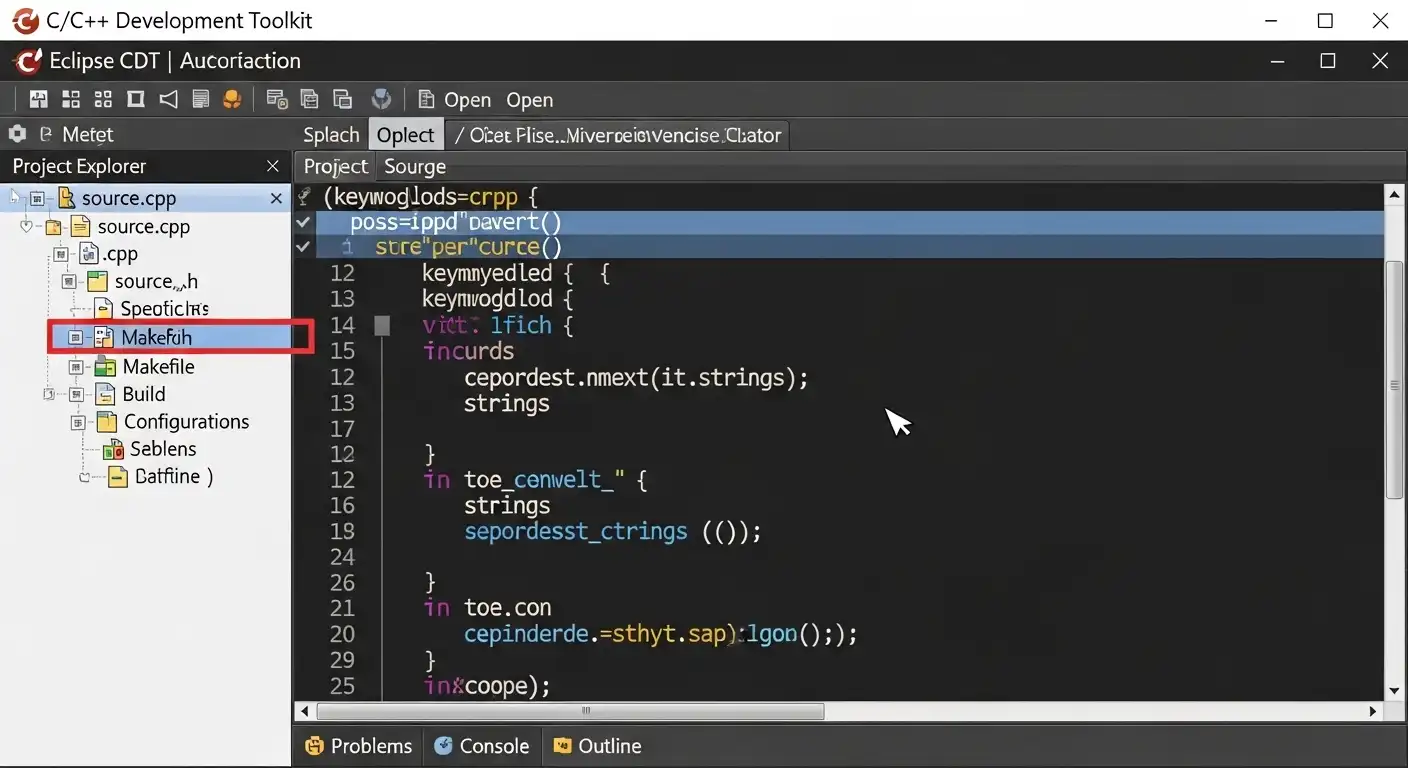

You’ve finally sat down to tackle that ambitious C++ project. You have the logic mapped out, your compiler is installed, and you’re ready to build something great. Then, the reality of the command line hits. You’re juggling fragmented Makefiles, squinting at cryptic linker errors in a terminal, and manually searching through thousands of lines of code just to find a single function definition.
It’s exhausting. You start wondering why C++ development feels like you’re back in 1985 while your web-dev friends are flying through code with modern luxuries. You need a way to bring order to the chaos without losing the power of C. That’s exactly where the Eclipse CDT enters the picture to save your sanity.
What is CDT? A Plain-English Explanation
In the simplest terms, CDT (C/C++ Development Tooling) is a massive, high-powered plugin for the Eclipse platform. While Eclipse started its life as a Java-focused environment, the CDT transforms it into a world-class integrated development environment (IDE) for C and C++ programmers.
Think of it as the “brain” that teaches Eclipse how to speak C. Without it, Eclipse is just a fancy text editor. With it, the software understands the structure of your code. It knows the difference between a variable and a function, it tracks where your headers are hidden, and it provides the “plumbing” necessary to turn your text files into a running program.
CDT provides the essential features you expect from a professional workspace:
-
A “smart” code editor that highlights syntax.
-
An integrated debugger that lets you stop time and inspect variables.
-
A project management system that handles complex folder structures.
-
An automated build system so you don’t have to write every Makefile by hand.
1 PM PT to EST: The Ultimate Time Zone Conversion Guide
CDT Explained with a Real-World Scenario
Imagine you are hired to maintain a massive “legacy” codebase for a medical imaging device. This project has 500 individual source files and depends on ten different external libraries.
If you used a basic text editor, finding where the process_image_data() function is defined would be like looking for a needle in a haystack. You’d be using “Find in Files” constantly, losing your train of thought every time.
When you import that project into CDT, the tool performs an “indexing” pass. It reads every line of your code and builds a map. Now, when you see process_image_data(), you simply hold Ctrl and click the name. CDT instantly jumps to the exact file and line where that function lives.
When it’s time to compile, you don’t need to remember the 50 different compiler flags needed to link those ten libraries. You configure them once in the CDT project settings, and from then on, you just hit the “Build” button. It’s the difference between flying a plane with manual pulleys versus a modern fly-by-wire system.
How to Get Started: Step-by-Step Instructions
Setting up CDT isn’t just about clicking “install.” Because C++ requires a compiler (which CDT does not provide on its own), you need to follow a specific sequence.
-
Install a Compiler First: Before touching Eclipse, ensure you have a compiler like GCC (via MinGW or Cygwin on Windows) or Clang installed and added to your system’s PATH.
-
Download Eclipse: Grab the “Eclipse IDE for C/C++ Developers” package from the official site. This version comes with CDT pre-installed.
-
Create a New Project: Go to
File > New > C++ Project. Choose “Executable” and select your specific compiler (e.g., “MinGW GCC”) from the toolchain list. -
Configure Includes: If you use external libraries (like OpenCV or Boost), right-click your project, go to
Properties > C/C++ General > Paths and Symbols. Add your include paths here so the indexer doesn’t show “red squiggly” errors. -
Build and Run: Use the hammer icon to build. If there are no errors, click the green “Play” button. CDT will launch a console at the bottom of your screen to show the output.
Common Mistakes People Make with CDT
The most frequent frustration users have with CDT stems from a misunderstanding of what it actually is.
-
The “No Compiler” Trap: Many beginners install CDT and expect it to “just work.” They get frustrated when they can’t run their code. Remember: CDT is a cockpit, not the engine. You must provide the engine (the compiler) separately.
-
Ignoring the Indexer: Sometimes the indexer gets “stuck,” showing errors even when your code is correct. Instead of panicking, right-click the project and select
Index > Rebuild. This usually clears up the “ghost” errors. -
Overcomplicating Project Structure: Users often try to manually manage Makefiles while also using CDT’s “Managed Build” feature. This causes conflicts. If you want CDT to handle the heavy lifting, let it manage the build. If you have a custom Makefile, choose the “Makefile Project” option from the start.
CDT vs. Visual Studio: A Comparison
While both are heavy hitters, they serve different niches.
| Feature | Eclipse CDT | Visual Studio (MSVC) |
| Price | Completely Free (Open Source) | Free Community / Paid Pro |
| OS Support | Windows, macOS, Linux | Primarily Windows |
| Memory Usage | High (Java-based) | High (Native) |
| Customization | Massive plugin ecosystem | Robust but more rigid |
| Toolchain | Extremely flexible (Any GCC/Clang) | Optimized for Microsoft’s compiler |
The unique angle: While Visual Studio is the king of Windows development, CDT is the industry standard for cross-platform and embedded systems. If you are writing code for a Linux server or an ARM microcontroller from a Windows laptop, CDT’s ability to “plug in” different cross-compilers is unmatched.
Pro Tips for Maximum Productivity
Once you have the basics down, use these “power moves” to speed up your workflow:
-
Use ‘Content Assist’ Aggressively: Press
Ctrl + Spacewhile typing. CDT will suggest variable names, class members, and even code templates. -
Master the Call Hierarchy: Press
Ctrl + Alt + Hon a function. CDT will show you every single place in the entire project where that function is called. This is a lifesaver for refactoring. -
Local History: Did you just delete a block of code and regret it, but
Undoisn’t working? Right-click the file and selectCompare With > Local History. CDT saves snapshots of your files every time you save, even if you aren’t using Git yet.
Frequently Asked Questions
1. Does CDT include a compiler?
No. CDT is an interface. You must install a compiler like GCC, Clang, or MSVC separately on your operating system for CDT to build your code.
2. Is Eclipse CDT better than VS Code for C++?
VS Code is lighter and faster for small scripts. However, for massive projects with complex build dependencies, CDT offers deeper “semantic” understanding and more robust project management out of the box.
3. Can I use CDT for embedded development?
Yes! In fact, most major chip manufacturers (like STMicroelectronics or NXP) base their official development tools on Eclipse CDT because of its flexibility with ARM toolchains.
4. Why is my “Problems” view full of errors even though the code compiles?
This usually means your “Include Paths” are not set correctly in the project properties. The compiler knows where the headers are, but the CDT Indexer does not. You need to sync them in the settings.
5. Is CDT still relevant in 2026?
Absolutely. While newer editors exist, the depth of CDT’s refactoring tools and its open-source nature make it a staple in corporate and industrial environments where stability is key.
Conclusion
Understanding what CDT is changes how you view C++ development. It shifts your focus from managing files and compilers to actually solving problems and writing logic. By providing a bridge between your raw source code and the complex tools required to build it, CDT turns Eclipse into a powerhouse that can handle everything from a “Hello World” to a multimillion-line operating system.
